Meeting translation
Live meeting translation for Zoom, Teams and Google Meet
Speak your language. Hear the meeting in yours.
Live meeting translation on your Windows or Mac desktop. Parley translates your microphone into the other person’s language and their meeting audio into yours, with original and translated captions together.
Only you need Parley. The other participant can stay in their meeting app and does not need a Parley account. Audio-device selection and setup are required.
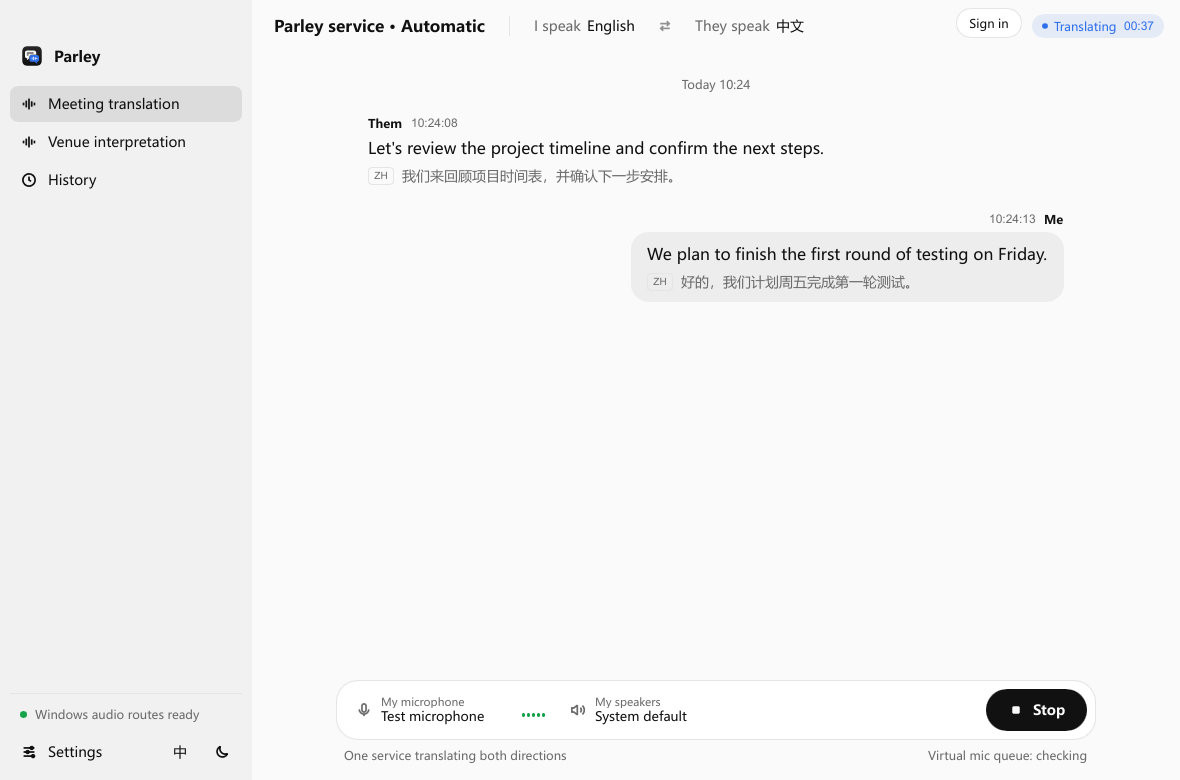
In one sentence: Parley translates your microphone into their language into the meeting, and translates meeting audio into your language in your headphones — both directions share one per-minute charge.
Two audio directions. One conversation.
When you speak
Your microphone → cloud translation → translated voice → the meeting’s virtual microphone.
When you listen
Meeting audio → cloud translation → translated voice → your physical headphones.
You can follow the original words and translation in the same desktop window. After the session, review local caption history or export an SRT subtitle file.
For client calls and international teamwork
Use Parley when you need to contribute to a conversation as well as understand it: a customer explaining a requirement, a supplier discussing a delivery, or teammates planning the next release. The person on the other side hears the translated voice through the meeting’s normal audio path.
Bilingual live captions and SRT export
Zoom, Teams and Meet native translation vs a desktop app
Microsoft Teams Interpreter: what it can and cannot do
Zoom Voice Translator: coverage in 2026
Native meeting translation vs Parley (Zoom, Teams, Meet)
Zoom built-in translation alternative
Google Meet speech translation alternative
Microsoft Teams Interpreter alternative
Sokuji alternative — open-source vs hosted
Does Google Meet support Chinese voice translation?
Will it work with my meeting setup?
Check your meeting app’s audio settings before your first call. You need to choose its microphone and the audio source Parley will translate. The exact steps depend on your operating system.
Windows 11 · x64 & ARM64
Choose the meeting process as the listening source. Select the matching virtual cable as the meeting microphone.
Windows audio checklist →macOS 14.5+
Use ParleyVirtualMic as the meeting microphone and ParleyMeetingBus as its speaker. Select physical headphones in Parley.
Mac audio checklist →Check both directions using the meeting app and devices you will actually use. This setup guide does not certify every meeting app or version.
How to set up meeting translation
- Prepare your app and account. Check the desktop preview requirements, sign in and select managed translation or your licensed personal API.
- Choose languages and a built-in voice. Confirm the pair is available in your installed app, selected model and mode. Provider language coverage is not the same as validated app support.
- Route the meeting audio. On macOS, select ParleyVirtualMic as the meeting microphone and ParleyMeetingBus as its speaker. In Parley, select your physical microphone and headphones. On Windows, select the meeting capture source and a suitable virtual audio cable for outgoing translated voice.
- Check both directions before the call. Start a short session and check what you hear and what the other person receives. Stop the session when you finish.
Pay for session time
Managed translation needs no personal API key and has no recurring Parley subscription. Speaking and listening share one connected-session charge — both directions do not double the cost. Billing includes silence while the connection is ready; stop the session to stop charging. A 30-minute session costs 30 minutes at the selected model’s rate.
Prefer your own provider account? A one-time personal API licence unlocks supported provider configuration. Provider usage remains a separate charge. Qwen is $0.070/minute and Doubao is $0.148/minute. Review the model prices and billing details.
What to check before relying on a live translation
Cloud translation requires an internet connection. Language availability, translated voice quality and delay depend on the provider, model, audio and network. Confirm important names, numbers and commitments with the other person. This development preview does not promise a particular accuracy or delay.
How to choose a meeting translation tool
Selected capture audio is processed by your chosen cloud service; caption history stays locally in the app. See how audio and account data are handled.
Meeting translation FAQ
How is this different from Zoom / Meet built-in translation?
Built-in features are often captions or one-way listen-translate, and language lists often leave out Chinese two-way voice. Parley routes a virtual microphone on your computer; the other person stays in their usual meeting app — no platform switch and no plugin.
How much delay should I expect?
Often a couple of seconds — like sitting next to a human interpreter. Try the same network before an important call.
Does the other person need to help set up?
They do not install Parley or create an account. On your side, follow the guide to select the meeting microphone and speaker.
Which models are available now?
Qwen and Doubao are live, including live voice cloning. Gemini and OpenAI are marked coming soon.
How much does it cost?
No subscription. Qwen is about $0.07 per minute; both directions share one session charge. Preview offers 20% off through November 1. Alipay is available.
Have a meeting in mind?
Check your setup, then choose the billing option that fits how often you meet.
Check desktop setup → Compare pricing →